
Learn languages by watching YouTube with DeepAcquire
AI-powered subtitles, word definitions on click, and a sync vocabulary notebook. Your can use your own AI provider for free. DeepAcquire: Learn while you watch. Enhance YouTube captions, save words with context, and ask follow-up questions.
Features
What you get with DeepAcquire
Learn naturally with enhanced subtitles, instant definitions, and personalized vocabulary tracking.
Enhanced AI Subtitles
Improved layout for YouTube captions with accurate translations powered by your chosen AI provider.
Hover Definitions
Instant word meanings in context. Click to save words, examples, and notes to your notebook.
Vocabulary Notebook
Build your vocabulary over time with saved words and context from videos you watch.
Flexible AI Providers
Bring your own AI. Connect to multiple providers with zero markup or vendor lock-in.
Open to new ideas and contributions
Embracing a culture that is open to new ideas and contributions is integral fostering innovation, collaboration, and a dynamic user experience.
Install DeepAcquire
Now available on the Chrome Web Store and Microsoft Edge Add-ons. Click 'Add to Chrome' or 'Add to Edge' to install. Safari and Firefox versions are coming soon.
 Add to Chrome
 Add to Edge
Context-Aware AI Explanations — Easier to Understand
Do not know a word in the captions? Hover and click to get an instant, context-aware AI explanation tailored to your current level in the clearest way for you.
Got Questions? Keep Asking AI
Confused by a phrase or mixing up similar words? Ask follow-up questions in the same context and get the differences explained clearly.
AI-Translated Subtitles — Dual Captions
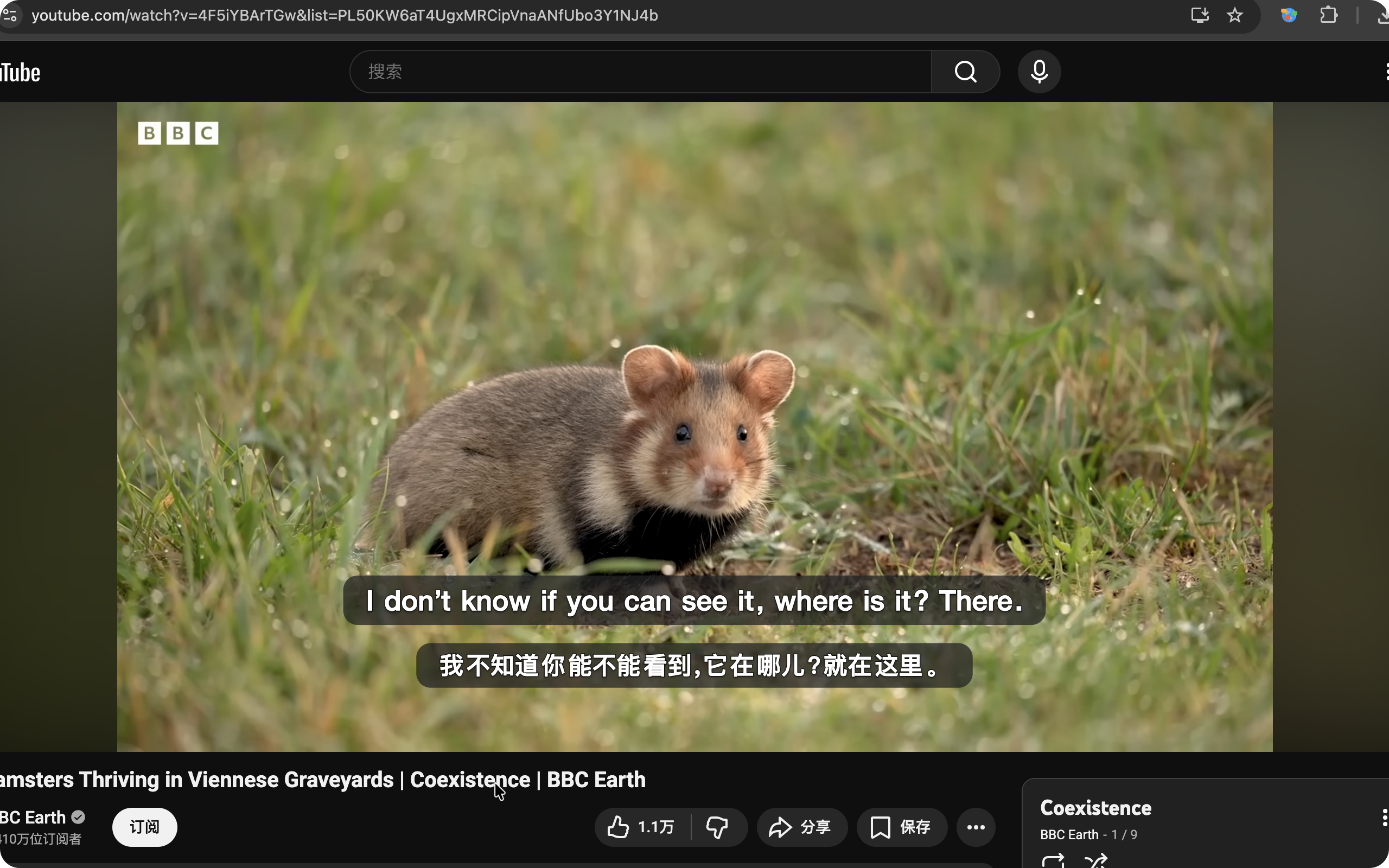
Sometimes you just want to relax and enjoy a movie or talk without language getting in the way. DeepAcquire translates captions into your preferred language and shows dual subtitles so you can simply enjoy.
Synced Notebook — Review Anytime
Never lose what you have learned. Save words (with context), clips, and even audio. Sync to your favorite notes app and review anytime to reinforce memory.
Set up DeepAcquire
Step 1: Choose language & level
Set the language you want to learn and your current proficiency level to better match your learning needs
Step 2: Configure AI service
Open Settings -> AI Service to configure your own AI service
Step 3: Set up notebook sync
Integrations to configure your own Eudic token to sync your vocabulary notebook to Eudic
Step 4: Enable subtitles
Open any YouTube video and enable subtitles
Ready!